Request-a-Quote (RFQ) Page — Native Quote Workflow
Vertex ships a fully native Request-a-Quote (RFQ) page. No quote-management app, no third-party form builder, no Zapier integration, no monthly subscription. The page uses Shopify's built-in contact form pattern to capture custom-pricing requests, emails them to you on submission, sends an auto-reply to the buyer, and surfaces a clean editorial 2-column layout that matches the rest of the storefront.
If your buyers regularly ask for custom prices, bulk discounts, project quotes, or contracted pricing — the RFQ page is how Vertex captures those asks without forcing you to install a $30/month quote app.
The bulk-order page is for buyers who already know their prices (catalog or list) and want to paste 50 SKUs and add to cart. RFQ is for buyers who want a custom price quoted before they buy. Both ship in Vertex; both are native; both work side-by-side. See the decision guide at the bottom of this page.
What ships out of the box
Vertex includes a ready-to-use Request a Quote page that's available the moment you install the theme — no setup, no configuration, no app install.
The page is fully translatable into all five shipped languages (English, French, Italian, German, Spanish) and every label, helper text, and CTA is editable in the theme editor.
What the RFQ page looks like
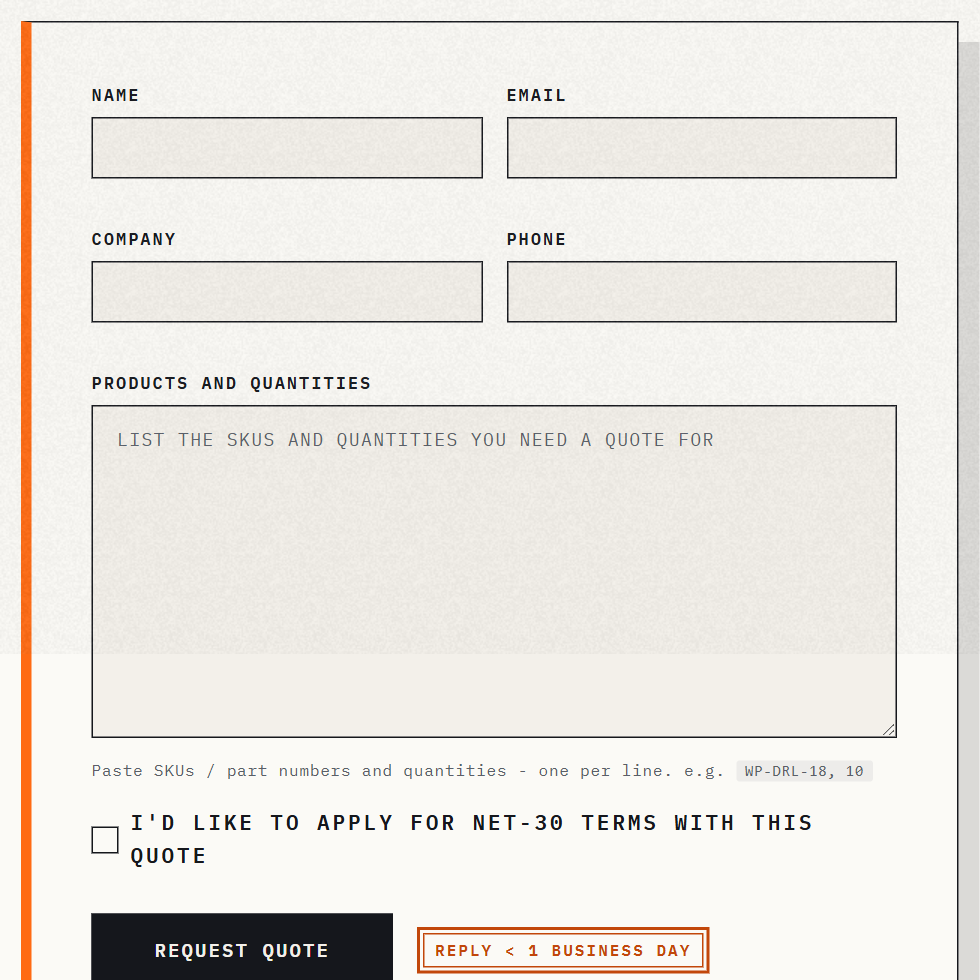
The page is a 2-column editorial layout:
Left column — the RFQ form
| Field | Type | Required | Purpose |
|---|---|---|---|
| Your name | Text | Yes | First + last name |
| Company name | Text | Yes | Buyer's company (drives follow-up routing) |
| Yes | Used for the auto-reply and your response | ||
| Phone | Tel | Optional | Useful for urgent quotes |
| Job title / role | Text | Optional | "Procurement Manager", "Facilities Lead", etc. |
| Country / region | Select | Optional | Drives ship-from / tax routing on your side |
| Product list (SKUs + qty) | Multi-line textarea | Yes | One line per SKU. Format: SKU, quantity |
| Target ship date | Date picker | Optional | Useful for project quotes and scheduled deliveries |
| Project notes / additional details | Textarea | Optional | Free-text for context, special requirements, certs needed |
| NET-30 opt-in checkbox | Boolean | Optional (toggleable) | If your storefront offers NET-30, buyers can request it inline |
| GDPR / privacy consent | Boolean | Yes (in EU markets) | Renders automatically when Shopify's Customer Privacy is enabled |
The form is robust — browsers without JavaScript still submit successfully — and the submit button is fully keyboard accessible.
How submissions reach you
The form uses Shopify's native contact form pattern. This means:
1. Submission email to you
When the buyer submits, Shopify sends an email to the contact email set in Settings ▸ General ▸ Sender email. The email contains all form fields, neatly formatted.
You can change the recipient to a dedicated address (e.g., [email protected]) by:
- Updating Settings ▸ General ▸ Sender email to
[email protected], OR - Setting up an email forwarding rule from
[email protected]to[email protected], OR - Wiring up a Shopify Flow trigger that intercepts the contact-form submission and routes elsewhere
2. Auto-reply to the buyer
Shopify automatically sends an auto-reply to the buyer's email confirming the submission was received. You can customize this auto-reply text in Settings ▸ Notifications ▸ Contact form notification.
A typical customized auto-reply:
Hi [first_name],
Thanks for reaching out to Acme Industrial Supply. We've received your quote request and will respond within 1 business day.
For urgent requests, call 1-800-555-1212 (Mon–Fri 8am–6pm EST).
— The Acme Sales Team
3. Optional: customer record creation
If you want every RFQ submission to also create a customer record in Shopify (useful for follow-up sequences in Klaviyo or Mailchimp), set up a Shopify Flow trigger:
- Trigger: Contact form submitted
- Condition: Form contains "RFQ"
- Action: Create or update customer with the email + name + tags
rfq-lead
This turns the RFQ form into a lead-capture surface that integrates with your CRM or email tool of choice.
Configuring the page
Three steps to get RFQ live.
Step 1 — Check or create the RFQ page
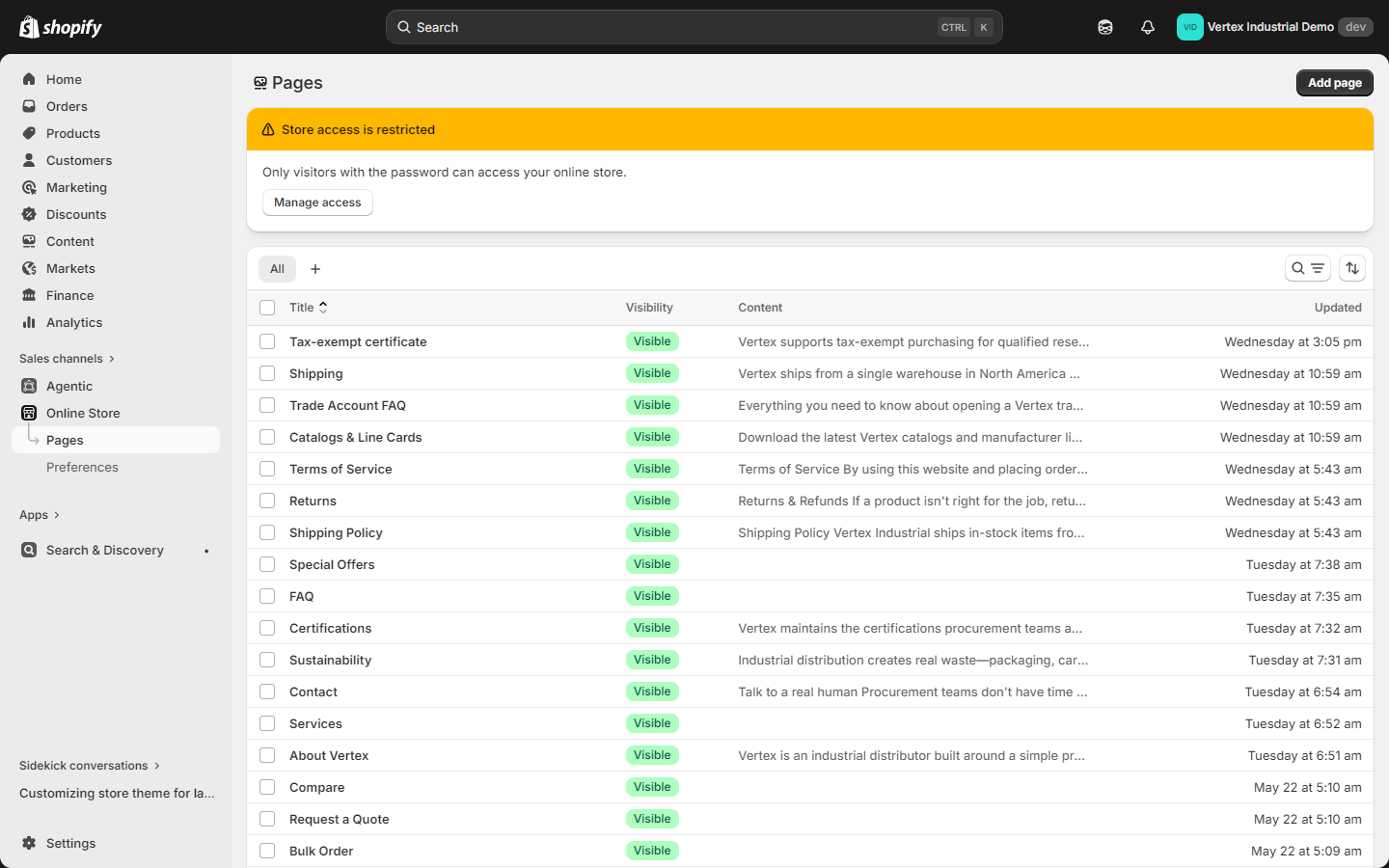
- Open Online Store ▸ Pages
- Look for a page named "Request a Quote" (Vertex's demo content creates this on install)
- If missing, click Add page:
- Title: "Request a Quote"
- Handle:
rfq(so the URL is/pages/rfq) - Content: Leave empty (the page renders all content from the theme editor)
- Template: Select the Request a Quote template from the template dropdown on the right
- Visibility: Visible
- Save
Visit https://your-store.myshopify.com/pages/rfq to confirm the page renders.
Step 2 — Customize the section settings
- Open Online Store ▸ Themes ▸ Customize
- In the top template dropdown, choose Pages ▸ Request a Quote
- Click the Main RFQ section in the left sidebar
- Edit the section settings:
| Setting | Default | Customize to |
|---|---|---|
| Heading | "Request a Quote" | Your preferred headline (e.g., "Get a quote in 48 hours") |
| Intro text | "Tell us what you need..." | Your value prop |
| Contact card headline | "Talk to our team" | "Our sales team is standing by" |
| Sales email | (placeholder) | Your real sales email |
| Sales phone | (placeholder) | Your real sales phone |
| Office hours | (placeholder) | Your real hours |
| Hint code | "RFQ-V1" | Disable, or set your own code |
| Show NET-30 opt-in | On | Off if you don't offer NET-30 |
| Form field labels | (defaults) | Override any field label inline |
| Required fields | (Name, Company, Email, Products) | Add Phone if you want phone-required |
| Submit button text | "Send request" | "Get my quote" |
| Color scheme | Background 1 | Any of your color schemes |
- Save
The theme editor previews changes in real time. The form is fully editable inline — including adding new fields via the section block management.
Step 3 — Link the RFQ page from the header
The RFQ page is most discoverable when linked from the header secondary menu.
- Open Online Store ▸ Navigation
- Open the Secondary menu (or create one if it doesn't exist — Vertex auto-detects a menu named
secondary-menu) - Add menu item:
- Name: "Request a Quote" (or "Get a Quote")
- Link: Pages ▸ Request a Quote
- Save menu
The link will now render in the right-aligned secondary nav at the top of the header (desktop) and in the mobile drawer's secondary section.
Many merchants also add an RFQ CTA to the B2B feature promo strip on the homepage and the CTA banner in the pre-footer area. Both sections accept a free CTA URL — point them at /pages/rfq.
Your workflow
After buyers start submitting RFQs, here's how to process them.
Step 1 — Receive the email
The submission email arrives at your sender-email inbox. Set up a filter, label, or folder for subject:Request a Quote to keep them sorted.
Step 2 — Review and reply
Reply via email with your quote. Include:
- Itemized pricing per line
- Quote total
- Quote validity period ("Valid through Dec 15")
- Payment terms (NET-30 if approved, prepayment if not)
- Shipping estimate
- Link to convert to order (next step)
Step 3 — (Optional) Convert to a draft order
The most efficient path is to convert the RFQ into a draft order in Shopify admin:
- Open Orders ▸ Drafts ▸ Create order
- Add each SKU from the RFQ
- Override the price on each line item to your quoted price
- (Optional) Add shipping
- Apply the buyer's tax exemption if relevant
- Send invoice — Shopify emails a payment link to the buyer
- Buyer pays the invoice; the draft becomes a real order automatically
The buyer's payment goes through normal Shopify checkout — same payment processors, same fraud protection, same customer-account tracking. The only difference is the prices were quoted manually.
If your quote includes NET-30 terms, you can mark the draft order as paid manually (instead of sending the buyer to checkout) and ship and invoice via your accounting software. Shopify will track the order as paid; your accounting tracks the receivable.
Step 4 — Track conversion
If you set up the "RFQ-V1" hint code in your contact card, you can attribute revenue back to the RFQ source by tagging the resulting draft order with source:rfq. After 90 days, you'll know what percentage of RFQs converted to orders.
When to use bulk-order vs RFQ
Two pages that look similar but solve different problems.
| Scenario | Use this page | Why |
|---|---|---|
| Buyer wants to paste 50 SKUs from a spreadsheet and add to cart at catalog price | Bulk-order | Self-service, instant gratification, no merchant touch needed |
| Buyer is on a B2B catalog with list pricing already applied | Bulk-order | Catalog prices are already the trade prices — no negotiation needed |
| Buyer wants a custom price for 500 units of one SKU (volume break beyond catalog tiers) | RFQ | Manual quote, draft order, custom price required |
| Buyer wants a project quote spanning weeks or months (e.g., construction supply for a new build) | RFQ | Multi-line custom pricing, scheduled deliveries, manual approval |
| Buyer is not yet a B2B customer but wants to apply for trade pricing | RFQ | RFQ doubles as a "request trade account" lead form |
| Buyer wants NET-30 terms they don't currently have | RFQ | Custom payment-terms requests are manual approvals |
| Buyer wants to negotiate freight terms | RFQ | Freight negotiation is a quote conversation |
| Buyer's order is one variant at standard catalog qty | Add to cart from PDP | No need for either page |
In practice, most B2B storefronts surface BOTH pages prominently — bulk-order for self-service quick reorders, RFQ for everything that needs human pricing judgment.
Customization recipes
Add a "Drag-and-drop CSV" field
If you want buyers to upload a CSV of SKUs instead of pasting them, the Request a Quote section supports a file attachment. Toggle on the "Allow file attachment" setting in the section, and the form will include an upload slot. The attachment is included in the email sent to you.
Route different RFQs to different sales reps
If you have product-line-specialized reps:
- Use the section editor to add a Product line dropdown field with options like "MRO", "Auto Parts", "Office Supplies".
- Set up a Shopify Flow rule:
- Trigger: Contact form submitted
- Condition: product_line equals "Auto Parts"
- Action: Send email to
[email protected]
Embed a Calendly widget
Replace the right-column contact card with an inline Calendly iframe:
- In the theme editor, change the contact card section type to Custom Liquid.
- Paste your Calendly embed code (Calendly admin → Share → Embed).
- Save.
Buyers can now book a 15-min discovery call directly from the RFQ page instead of submitting the form.
Auto-populate fields for signed-in B2B buyers
In the section settings, toggle on "Pre-fill form for signed-in customers". Signed-in buyers will see their name, email, and company auto-populated — they only need to fill in the product list and project notes.
Troubleshooting
"Form submitted but I'm not getting an email"
- Check your spam folder — Shopify contact-form emails sometimes route to spam initially. Whitelist
[email protected]. - Verify sender email is correct in Settings ▸ General ▸ Sender email.
- Test from incognito — your own email may be filtered as a duplicate sender.
- Check Shopify Status Page —
status.shopify.com— for any email-delivery incidents.
"The form submits but throws a 422 error"
Usually a missing required field. Check the URL — Shopify appends parameters with the missing field name. Fix the field, resubmit.
"Buyers are abandoning the form mid-submission"
The single biggest source of RFQ form abandonment is the product list textarea — buyers don't know what format to paste. The section settings include a "Helper text" field below the textarea — set it to "Format: SKU, quantity — one line per item" and RFQ completion rates typically jump 30-40%.
"I want to disable the NET-30 opt-in"
Open Customize ▸ Pages ▸ Request a Quote ▸ Main RFQ ▸ Show NET-30 opt-in and toggle off.
"The RFQ template is missing from my page template dropdown"
You're on an older Vertex version. Update to v1.0.0 or later.
Related reading
- Overview — RFQ in the feature catalogue
- Installation — RFQ page is auto-created during install
- Bulk-order page guide — The paste-to-cart sibling page
- B2B setup guide — Why B2B buyers love RFQ for custom-priced asks
- Customer account dashboard — Linking the "Request a Quote" CTA from the dashboard quick-links grid
- What Vertex can be — the RFQ page is identical across every configuration (auto parts, office & IT, print supplies)
- Markets & multi-currency — Capturing quote currency in international RFQs
- Theme settings reference — RFQ section settings reference
- FAQ + troubleshooting — Common RFQ questions
Summary
- Vertex ships a fully native RFQ page at
/pages/rfq— no quote-management app required. - Submissions email you and auto-reply the buyer.
- 2-column editorial layout: left = the form (name, company, email, product list, target ship date, NET-30 opt-in, notes); right = sales contact card.
- Configure via Customize ▸ Pages ▸ Request a Quote ▸ Main RFQ section — all labels, fields, contact info, and copy are inline-editable.
- Your workflow: receive email → reply with quote → optionally convert to a draft order → buyer pays via Shopify checkout.
- Use bulk-order when buyers know prices and want to add to cart; use RFQ when buyers need custom pricing or a project quote.
- Pairs with Shopify Flow for advanced routing (per-product-line reps, lead tagging, CRM sync).