Shopify Markets & Multi-Currency Setup for Vertex Theme
Vertex is fully wired to Shopify Markets out of the box — no apps, no third-party currency converters, no FX scripts. If you sell to procurement teams across multiple countries, dealer accounts in different currencies, or operate trade catalogs for separate regions, this guide takes you from a single-market starter store to a polished multi-market B2B and B2C storefront in roughly 30 minutes.
B2B buyers in Shopify are pinned to a single market by their company assignment — they cannot freely switch currencies. Vertex still renders the currency pill for them (informational) so they always see which currency they are paying in at a glance. Procurement teams love this — it removes one round-trip email per quote. The dropdown will just contain one option.
What "Markets" actually controls
Shopify Markets is the native subsystem that controls, per country or region group:
- Currency the buyer sees and pays in (auto-converted from your store currency, OR overridden via a market-specific price list)
- Language the storefront renders in (Vertex ships English, French, Italian, German, Spanish)
- Pricing strategy — automatic conversion at live FX rates with optional adjustment percentage, OR a fixed manual price list per market
- Domain or subfolder —
example.com/fr-ca/or a wholly separate.cadomain - Geolocation redirect — auto-suggest or auto-redirect non-matching visitors to their nearest market
- Tax and duties treatment (in markets that support DDP, like Shopify Markets Pro)
Vertex's job is to render this configuration faithfully: the currency pill, the language pill, the hreflang tags, the per-market price formatting, and the B2B greeting bar all reflect your live Markets configuration on every page load.
Prerequisites
| Requirement | Why |
|---|---|
| Shopify plan: Basic or higher | Markets is included on every paid plan, but you need at least Basic for secondary markets. Shopify Plus unlocks unlimited markets + Markets Pro (duties + DDP). |
| At least one Secondary market published | The currency pill needs somewhere to switch to. Even without a secondary market, the pill itself still renders for B2B buyers (see Special case: B2B + Markets below). |
| Theme published OR previewed | Some Markets configuration (geolocation redirect, default market) only renders correctly when the theme is published or being previewed via the theme editor. |
| Locales installed | If you want a language switcher (not just a currency switcher), publish the corresponding locale in Settings ▸ Languages. Vertex ships full UI translations for English, French, Italian, German, and Spanish. |
Markets — including multi-currency and multi-language — is included on every Shopify plan. You only pay for FX conversion via Shopify Payments fees (already part of your transaction fee), not for the Markets feature itself. Duties + DDP collection (Markets Pro) is the paid add-on.
Step-by-step: enable Markets
Step 1 — Open Markets in Shopify admin
In your Shopify admin, go to Settings ▸ Markets.
You'll land on a page that lists your Primary market (created automatically when you opened your store, usually your country of incorporation) plus any Secondary markets you've added.
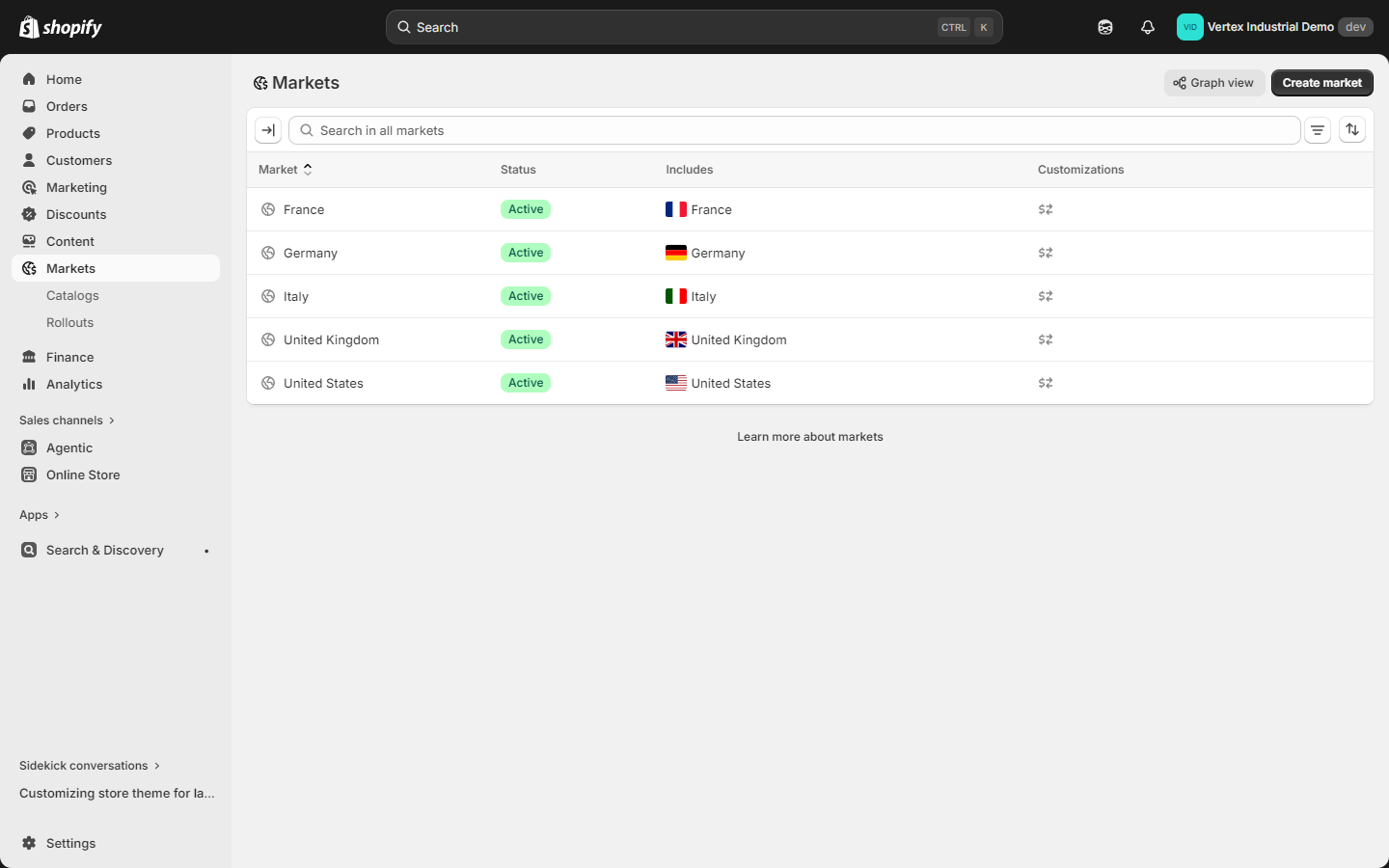
Step 2 — Configure the Primary market
Click into your Primary market. Confirm:
- Country / region is correct (this drives default tax and duties)
- Currency is your store currency (cannot be changed once orders exist)
- Language is your default language (the locale flagged "Default" in Settings ▸ Languages)
This is the fallback market — every visitor who is not matched to a secondary market sees Primary pricing and language.
Step 3 — Add a Secondary market
Click Add market in the top right.
For each new market, configure:
| Field | What to enter |
|---|---|
| Market name | Internal label — "European Union", "Canada", "Asia-Pacific Wholesale" |
| Countries / regions | One or more countries that share this market's pricing, currency, and language. EU buyers can share one market; UK and EU could be split if you want different VAT treatment. |
| Currency | The local currency (e.g., EUR for EU, GBP for UK, CAD for Canada). Shopify will auto-convert from your store currency at live rates unless you upload a manual price list. |
| Languages | One or more locales published in Settings ▸ Languages. Default language for this market is auto-detected from the country if you have a matching locale. |
| Pricing strategy | Adjust prices by % from store currency (e.g., +5% to cover FX risk) OR Use a manual price list for that market. |
| Domain or subfolder | example.com/fr-fr/ (subfolder, recommended for SEO) OR a separate ccTLD like example.fr. |
Subfolder URLs (example.com/fr-fr/) consolidate domain authority, are auto-paired with hreflang tags by Vertex, and require zero DNS work. Separate ccTLD domains split your authority and require manual hreflang setup. We recommend subfolders unless you have a strong tax or legal reason to use ccTLDs.
Step 4 — Choose your pricing strategy
You have three options for prices in each secondary market:
Option A — Auto-convert from store currency (default)
Shopify converts your store-currency prices to the market currency at the live FX rate, rounded to your chosen format (e.g., .99 endings). Updated once per day. Free; no manual upkeep.
Option B — Auto-convert + adjustment Same as A, plus a percentage adjustment (e.g., +5%, -10%) applied to every product in this market. Useful when you want to absorb FX risk or run a regional discount or markup uniformly.
Option C — Manual price list per market Upload a CSV (or use the admin UI) with explicit prices per variant per market. Required when you have fixed contractual pricing in a region — common for B2B distributors with negotiated regional dealer pricing.
If a B2B buyer is signed in and their company has a catalog assigned, the catalog's prices take precedence over Market pricing for that buyer. Markets pricing is the fallback when a B2B buyer has no catalog assigned, or for B2C and guest shoppers in that market.
Step 5 — (Optional) Enable Geolocation redirect
Still in Settings ▸ Markets, scroll to the Geolocation card.
Two choices:
- Recommend a different market — shows a small bar at the top of the storefront ("Looks like you're in France. Visit our French store?") with a Visit / Stay choice. Less aggressive — recommended for B2B because some procurement buyers deliberately use a US storefront to compare prices.
- Automatically redirect — server-side redirects the visitor to their nearest market with no choice. Higher conversion in pure B2C, but can frustrate B2B buyers and bots.
Pick Recommend unless you have a strong reason otherwise. Vertex respects whichever you choose — no theme changes required.
Step 6 — Publish your secondary markets
Each market has an Active / Inactive toggle in the markets list. Toggle to Active when you're ready for buyers to see it. The currency pill in Vertex will start surfacing the new market's currency in its dropdown immediately on the next page load.
How Vertex renders the switcher
Vertex's currency and language pills appear in two places:
- Desktop header (≥1170px) — inline in the cobalt-blue B2B greeting bar for signed-in B2B buyers, OR inline in the main white header for guests and B2C buyers
- Mobile drawer and tablet (<1170px) — at the top of the hamburger drawer, as two pills in a 2-column grid for one-handed reach

Pill anatomy
Each pill is a compact rounded button with three elements:
- Circular flag avatar — the country's flag
- 2-line text stack — eyebrow label ("Currency" or "Language") above the ISO code ("EUR", "FR")
- Chevron — indicates the pill opens a dropdown panel
Tapping a pill opens a custom dropdown that highlights the currently selected option, closes on outside click or Escape, animates in cleanly, and is fully keyboard accessible. Vertex deliberately ships zero native browser dropdowns in the chrome — everything matches your storefront's design language.
Why the pill always renders
Vertex shows the currency pill even on stores with one market and for B2B buyers pinned to a single market. The dropdown will simply have one option in those cases.
This is deliberate. B2B buyers paying in EUR want to see EUR on every page even if they cannot switch — it's reassurance that they are not about to be charged USD. Procurement teams have flagged silent-currency-switch concerns in user testing repeatedly; surfacing the currency badge prevents that confusion.
If you want to hide the currency pill entirely (e.g., you have one market and want to declutter), open Customize, click the Header section, and toggle off Show currency switcher (under Localization switchers). The language pill (Show language switcher) is independent.
Special case: B2B + Markets
Shopify B2B has a strict rule: every company is pinned to exactly one market. When you create a company in Customers ▸ Companies, you choose the market it belongs to. Buyers in that company will always see that market's currency, language, and catalog — they cannot switch.
Vertex respects this end-to-end:
| What renders for B2B buyer | Behavior |
|---|---|
| Currency pill | Renders. Dropdown has 1 option (their market's currency). Shown as the currency they will be charged at checkout. |
| Language pill | Renders if more than one language is published in their market. Otherwise renders with a single option. |
| Ship-to switcher | Renders if the buyer has more than one ship-to address authorized for their company. Independent of market. |
| Company switcher | Renders only if the buyer is attached to more than one company (rare; usually accounts-payable staff at parent companies). |
| Volume pricing, NET-30, tax-exempt | All drawn from the company's market and catalog assignment. Unchanged by anything in the localization switchers. |
If a buyer asks "why is my currency pill not changing currency?", the answer is because B2B buyers are pinned, not because the pill is broken. Removing the pill to avoid the question creates a worse problem — buyers no longer see what currency they are paying in. Leave it on.
Verifying your setup
After publishing Markets and the Vertex theme, run through this checklist:
- Open the storefront in an incognito window. You should see your Primary market by default (USD if US, GBP if UK, etc.).
- Click the currency pill in the desktop header. All your published markets should appear. Selecting one should reload the page in the new currency.
- Switch to a mobile breakpoint (or open on a real phone). Open the hamburger drawer. The currency and language pills should appear at the top of the drawer in a 2-column grid.
- Sign in as a test B2B buyer. The pill should now render in the cobalt-blue greeting bar (desktop) or stay in the drawer (mobile). The dropdown should show only the buyer's market currency.
- Inspect the page HTML. Look for
<link rel="alternate" hreflang="fr-fr" href="https://example.com/fr-fr/" />tags in<head>— one per published locale. Vertex emits these automatically. - Open Google Search Console ▸ International targeting. After Google recrawls (1–14 days), your hreflang tags should appear validated with no errors.
Troubleshooting
"My currency pill is not showing"
Most common causes, ordered by frequency:
- Only one market published. The pill does render with one option — make sure you're looking in the right spot (greeting bar for B2B, main header for guests, drawer for mobile or tablet).
- Currency switcher toggled off in the Header section. Open Customize, click the Header section, and confirm Show currency switcher (under Localization switchers) is on.
- Storefront mode set to "B2B-only" with no B2B buyer signed in. B2B-only mode hides the main header for guests entirely. Sign in or switch to Hybrid.
- Theme not published. Markets only renders correctly on the published theme. Preview theme works for the theme editor but does not always render Markets correctly.
- Caching. Hard-refresh (Ctrl+Shift+R) or open in incognito.
"Prices are not converting to local currency"
- Market is Inactive. Toggle to Active in Settings ▸ Markets.
- You're previewing the theme on a Markets-disabled URL. Currency conversion only happens on the published theme via the buyer's actual market URL (e.g.,
/fr-fr/). - B2B catalog override. B2B buyers with a catalog assigned see catalog prices, not Markets prices. This is correct behavior.
- Cached storefront. Shopify caches storefronts aggressively. Wait 5 minutes or hard-refresh.
"hreflang tags missing"
- Languages not published. Go to Settings ▸ Languages and ensure each language is Published, not just Visible.
- Theme too old. hreflang tags ship in Vertex v1.0.0 and later. Check your theme version in Online Store ▸ Themes.
"Geolocation redirect is too aggressive"
Switch from Automatically redirect to Recommend a different market in Settings ▸ Markets ▸ Geolocation. The latter shows a polite "Visit our French store?" bar instead of a hard redirect.
"B2B buyer sees the wrong currency"
The buyer's currency is determined by the company's market assignment in Customers ▸ Companies ▸ [Company] ▸ Market. Change the market here, not in the theme.
SEO impact of multi-market setup
A well-configured multi-market storefront is a strong international SEO signal. Vertex automatically emits:
<link rel="alternate" hreflang="xx-yy" ... />for every published locale in your store. Tells Google "this same page is available at this URL in this language for this region". Critical for ranking in localized SERPs.<html lang="xx" dir="ltr|rtl">based on the active locale. Helps screen readers and browser translation tools recognize the language.<meta property="og:locale" content="xx_YY">for the active locale plus alternates for siblings. Drives correct Open Graph previews per region.- Localized JSON-LD — Product, BreadcrumbList, Organization, and FAQPage schema all use the locally rendered strings (names, descriptions, FAQ answers) — not the master English copy.
Result: Google can serve French buyers your /fr-fr/ URL, German buyers your /de-de/ URL, and Spanish buyers your /es-es/ URL — without ever showing them the English version unless they explicitly request it.
If you do international B2B, mention the buyer's expected currency on your RFQ form. Vertex's RFQ page does not auto-detect currency, so you'll want a free-text "Quote currency" field if you negotiate in multiple currencies regularly.
Related reading
- Overview — Why Vertex is built on Markets natively
- Installation — Theme install and B2B enablement
- Storefront mode guide — How Hybrid / B2B-only / B2C-only interact with Markets
- B2B setup guide — Companies, catalogs, market pinning
- What Vertex can be — Every configuration (auto parts, office & IT, print supplies) works identically across all markets
- Customer account dashboard — Per-buyer currency display
- RFQ page guide — Capturing quote currency in international RFQs
- Theme settings reference — Localization ▸ Text direction (the currency / language switchers live on the Header section, not in Theme settings)
- FAQ + troubleshooting — More currency and Markets issues
Summary
- Shopify Markets is the native subsystem that controls per-market currency, language, pricing, and domains. Free on every paid plan.
- Vertex's currency pill renders even for single-market and single-option B2B scenarios — informational by design.
- B2B buyers are pinned to one market by their company; the pill becomes a "current currency" badge.
- hreflang tags emit automatically for every published locale. Helps Google serve international searchers the right URL.
- Manual price lists override auto-conversion when you need fixed regional dealer pricing.
- Geolocation should be set to Recommend, not Auto-redirect, in B2B contexts.
Time to first multi-currency render: about 30 minutes including theme publish and market verification.