Product Page (PDP) Sections
The Vertex product page is built for technical catalogs — buyers who care about part numbers, specs, datasheets, MOQs, case-packs, and volume pricing. Every B2B touchpoint (volume tiers, login-required pricing, quantity rules, sales-rep card, ships-from, NET-terms badge) appears inline on the product page without a single companion app.
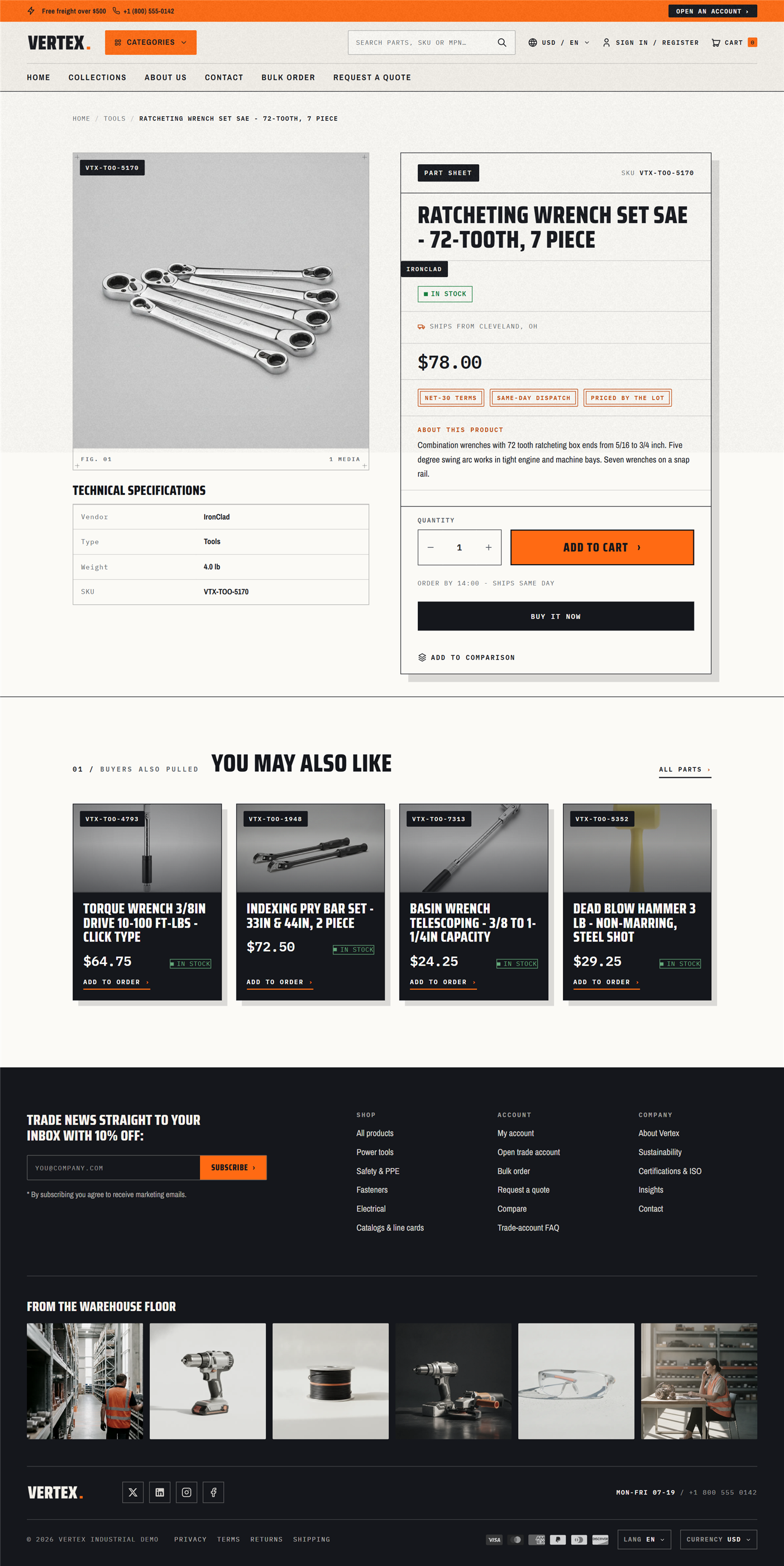
The same product page works for guests and signed-in B2B buyers. Prices, badges, quantity rules, and the sales-rep card automatically reflect the customer's company catalog and payment terms — you don't need a "B2B product template" and a "B2C product template" as parallel files.
Main product
The product page itself — gallery, title, price, variant picker, quantity input, Add to cart, and every B2B-aware surface stacked into one section. Each block below is a drag-and-drop block you can reorder in the customizer.
Open Shopify admin → Online Store → Themes → Customize, navigate to a product page, find the Main product section in the page editor, and click Add block to add or reorder these blocks.
Gallery
- Main image with image rollover on listing cards (requires 2 or more images)
- Thumbnails below the main image
- Click-to-zoom (lightbox)
- Mobile: swipeable carousel with dots
Title + meta
- Product title
- Vendor (if shown)
- Ships-from label — per-product ships-from setting or theme-wide default
- MPN line — when MPN is filled, shows "MPN: 1N4148" under the title
Price block
The pricing surface is B2B-aware out of the box:
- Volume pricing tiers — pulled from Shopify's native B2B catalog. Buyers see "1–9: $4.50 · 10–49: $4.10 · 50+: $3.80" inline. Appears automatically when the variant has volume tiers set up.
- Login-required pricing — when the theme setting Hide prices until customer logs in is on, prices are replaced with "Log in to see pricing" and a sign-in link for guests.
- B2B compare-at price — strikethrough display when the B2B catalog price is lower than the storefront price.
Variant picker
Shows as styled buttons (swatches for color, size buttons for size, dropdown for other options). Out-of-stock variants are shown struck-through but still clickable, so the buyer can see alternatives.
Quantity input
Quantity rules are enforced everywhere — in the input, the cart, and at checkout:
| Rule | Behavior |
|---|---|
| MOQ (minimum) | Cannot decrement below the minimum. Inline message: "Minimum order: 12". |
| Maximum | Cannot increment above the maximum. Inline message: "Maximum: 144". |
| Case-pack increment | Steps by case-pack size. Manual entry rounds up to the next valid value with a small toast notification. |
Buyers attached to a B2B catalog get the company-specific quantity rules; guests get the storefront rules. Both come from Shopify's native quantity rules — Vertex just shows them.
Add to cart + Buy it now
- Add to cart — Standard button, disabled when out of stock unless pre-order is enabled.
- Buy it now — Shopify's accelerated checkout buttons (Shop Pay, Apple Pay, Google Pay, PayPal). Toggle them in Shopify Settings.
- Pre-order — When the variant is back-orderable, replaces "Sold out" with "Pre-order".
Sales-rep card
For signed-in B2B buyers, a sales-rep card appears on the product page showing the company's assigned rep:
- Name
- Email (clickable email link)
- Phone (tap-to-call on mobile)
Appears only when at least one rep field is filled and the customer is a B2B buyer.
Breadcrumb
Auto-generated from the product's primary collection. Adds Google breadcrumb rich-snippet markup.
Tech-spec table
Add a Tech specs block to show a clean two-column spec table from your tech-spec data. Use it for dimensions, weight, material, voltage, capacity, and certifications.
→ See the Metafield setup guide for filling these in.
Documents & downloads
Add a Documents block to show a list of PDF downloads on the product page:
- Datasheet
- MSDS
- Brochure
- Technical sheet
- Installation guide
- Warranty card
Auto-hides per product when no documents are attached.
Price history
Add a Price history block to show a collapsible "Price history" section with date and price entries. Useful for industrial buyers monitoring market trends.
Stock counter (low-stock indicator)
Add a Stock counter block to show a per-variant urgency cue. It only appears for variants you're tracking inventory on, and switches to the "Only N left" warning once stock drops to the low threshold (10 units). Encourages action without revealing exact inventory to competitors.
Shows one of these states:
- Plenty in stock (more than 10): "In stock"
- At or below 10 units: "Only 4 left in stock"
- Back-orderable (zero, but set to keep selling): "Back-ordered — ships in 7–10 days"
- Sold out (zero, not back-orderable): "Sold out"
When Hide prices until customer logs in is on, the entire price block (including volume tiers and compare-at) is replaced with a "Log in to see pricing" prompt for guests. Quantity rules, stock counter, and the sales-rep card still appear so buyers can decide whether the product is worth signing in for.
Product tabs
The product tabs section splits product content across tabs. Drop this section below Main product on the product page to reduce visual clutter on long-spec products.
Per-tab settings: title, content (rich text, file, or video).
Common tab patterns:
- Description — main marketing copy
- Specs — extended technical specs beyond the tech-spec table
- Datasheet — embedded PDF viewer
- Shipping & Returns — logistics info
- Video — embedded YouTube or Vimeo
The tabs are fully keyboard accessible. The first tab is open by default; opening another can either close the others (accordion mode) or keep them open (toggle mode), depending on the section's Allow multiple open setting.
Related products
Recommendation strip under the product page. Pulls from same-collection or same-tag products.
Settings
- Heading — E.g., "Customers also viewed" or "You may also like".
- Source — Same collection (default), same tag, or manual picker.
- Max products — 4 (default), 6, 8, or 12.
- Show price — Toggle. Respects login-required-pricing rules.
- Show vendor — Toggle.
For B2B catalog buyers, only products in the buyer's catalog appear. Vertex respects Shopify's native catalog filtering end-to-end.
Recently viewed
A browser-tracked list of recently viewed products (up to 12 per buyer). Appears on the product page at the bottom and can also be dropped on the homepage as a strip.
How it works
- Every product view appends to the buyer's browser memory (capped at 12)
- The section reads that list and fetches each product's card
- Cleared when the buyer clears their browser data — not a wishlist, not saved to Shopify
Settings
- Heading — "Recently viewed"
- Max products — 4, 6, 8, or 12
- Hide if empty — On by default. The entire section disappears when the buyer has no view history.
A persistent wishlist requires a Shopify app. Vertex stays Theme Store compliant by keeping recently-viewed strictly session and browser scoped. Compare uses the same approach (see B2B-only sections).
Sticky cart
A mobile-only sticky Add to cart bar that appears after the buyer scrolls past the main Add to cart button. Keeps Add to cart one tap away even when they're deep in the spec table.
What appears
- Product image thumbnail (left)
- Selected variant title and price
- Quantity input
- Add to cart button (right)
Settings
- Show on mobile only — On by default. Desktop has the sticky header for navigation; mobile gains more conversion lift from sticky Add to cart.
- Show variant title — Toggle.
- Color scheme
The section only appears when the main Add to cart button scrolls out of view, and disappears when scrolled back into view.
B2B interactions cheat-sheet
| Surface | Guest | Signed-in B2C | Signed-in B2B |
|---|---|---|---|
| Price block | Hidden if "Hide prices until customer logs in" is on | Storefront price | B2B catalog price plus volume tiers |
| Volume pricing tiers | Hidden | Hidden | Visible |
| Quantity rules | Storefront MOQ/max | Storefront MOQ/max | Company catalog MOQ/max |
| Sales-rep card | Hidden | Hidden | Visible (when rep fields filled) |
| NET-terms badge | Hidden | Hidden | Visible in greeting bar (not PDP) |
| Pre-order button | Visible when enabled | Visible when enabled | Visible when enabled |
| Stock counter | Visible | Visible | Visible |
| Recently viewed | Visible | Visible | Visible |
What's next
- B2B-only sections → — Bulk order, RFQ, compare, B2B feature promo
- Sales boost sections → — Stock counter, quick view
- Header, footer & chrome → — Header, footer, B2B greeting bar
- B2B setup guide → — Enable B2B and fill in sales-rep details
- Metafield setup guide → — Datasheets, MPN, ships-from, tech-specs