Landing Page Builder
The Landing Page Builder is a visual, drag-and-drop editor that lets you customize your landing page without any coding knowledge. Change colors, text, images, layouts - everything is point-and-click.
Watch the Video Tutorial
Accessing the Builder
There are two ways to open the builder:
Method 1: From Settings
- Go to SaaS Management → SuperAdmin Settings → Landing Page Settings
- Click "Customize with builder"
Method 2: From Sidebar
- Go to SaaS Management → Landing Page Builder
Builder Interface
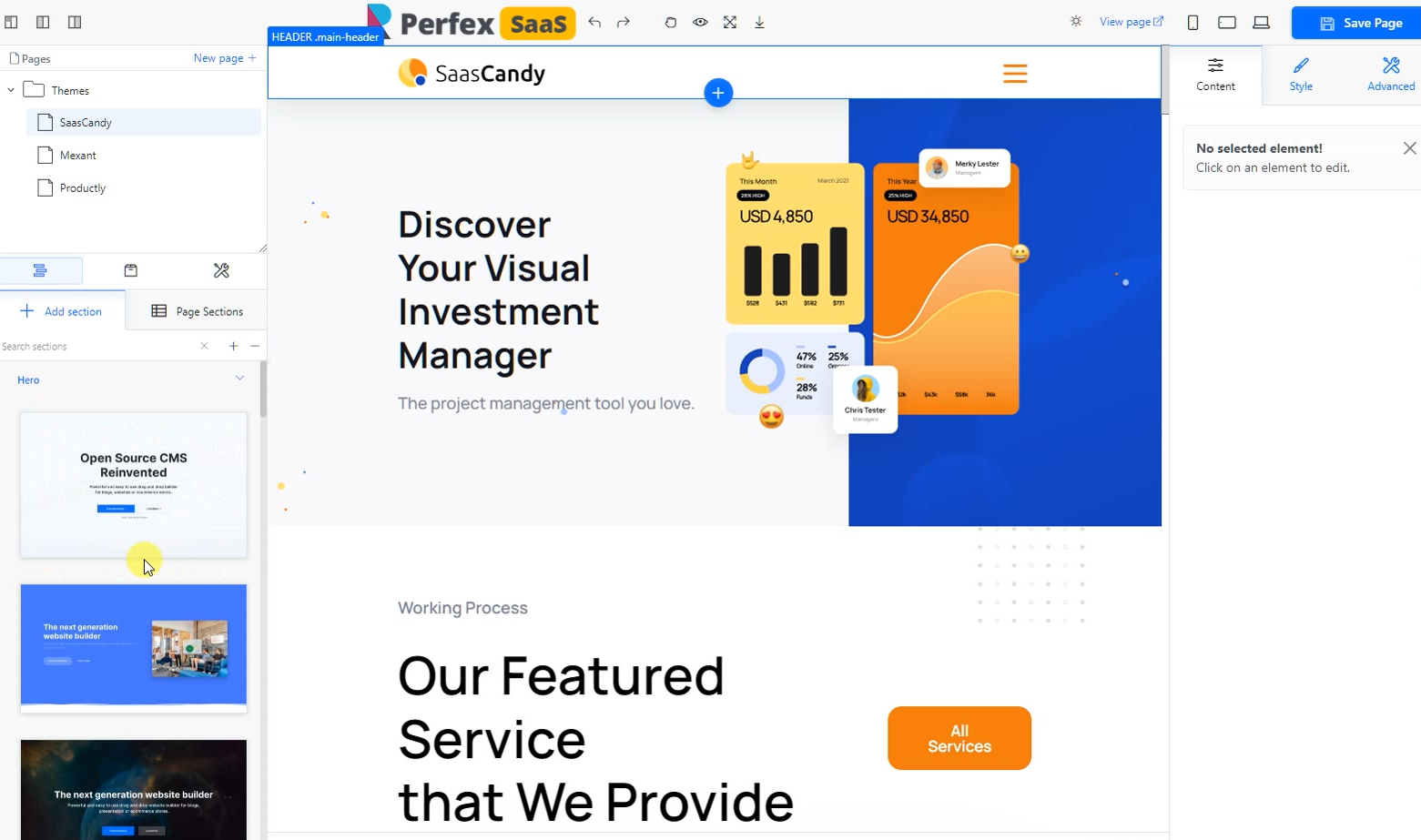 The Landing Page Builder - Pages on the left, visual editor in the center, properties on the right
The builder has three main areas:
| Area | Location | What It Does |
|---|---|---|
| Pages & Sections Panel | Left side | Browse themes, add sections, manage pages |
| Visual Editor | Center | See your page and click elements to edit them |
| Properties Panel | Right side | Edit the selected element's content, style, and settings |
Working with Themes
The left panel shows available themes:
- SaasCandy - Modern SaaS-focused design
- Mexant - Clean and minimal
- Productly - Product showcase style
Click a theme to start with its predefined sections, then customize from there.
Adding Sections
- In the left panel, click "+ Add section"
- Browse the available section types:
- Hero - Header with headline and CTA
- Features - Showcase features in cards or lists
- Pricing - Display your subscription plans
- Testimonials - Customer quotes and reviews
- Contact - Contact form or information
- Custom - Blank section for your own content
- Click a section to add it to your page
- Drag sections to reorder them
Editing Elements
- Click any element in the visual editor (text, image, button, etc.)
- The Properties Panel on the right will show its settings
- Tabs in the Properties Panel:
- Content - Edit text, images, links
- Style - Change colors, fonts, spacing, borders
- Advanced - CSS classes, animations, visibility
Managing Pages
The builder supports multiple pages:
- Click "New page +" in the Pages section (top left) to create additional pages
- Useful for creating separate pricing pages, feature pages, or about pages
Tips for a Great Landing Page
Keep It Simple
- Don't overload with sections - 5-7 sections is ideal
- Each section should have ONE clear purpose
- Use plenty of white space
Use High-Quality Images
- Replace default images with your own screenshots
- Show your actual CRM interface - real is better than stock photos
- Use consistent image sizes
Optimize for Speed
- Keep images under 200KB each
- Don't add too many sections (page load time matters!)
- Test load speed with Google PageSpeed
Test on Mobile
- Click the mobile preview button in the builder
- Make sure all text is readable on small screens
- Check that buttons are easy to tap
Saving Your Changes
When you're happy with your landing page:
- Click "Save Page" (top right corner, green button)
- Click "View page" to see the published version
- Share the URL with customers!
Don't forget to save! Changes are NOT auto-saved. Always click "Save Page" before leaving the builder.
Landing page looking good? Move on to configure Custom Domains if you want to offer custom domain support for your premium tenants.