Mega Menu
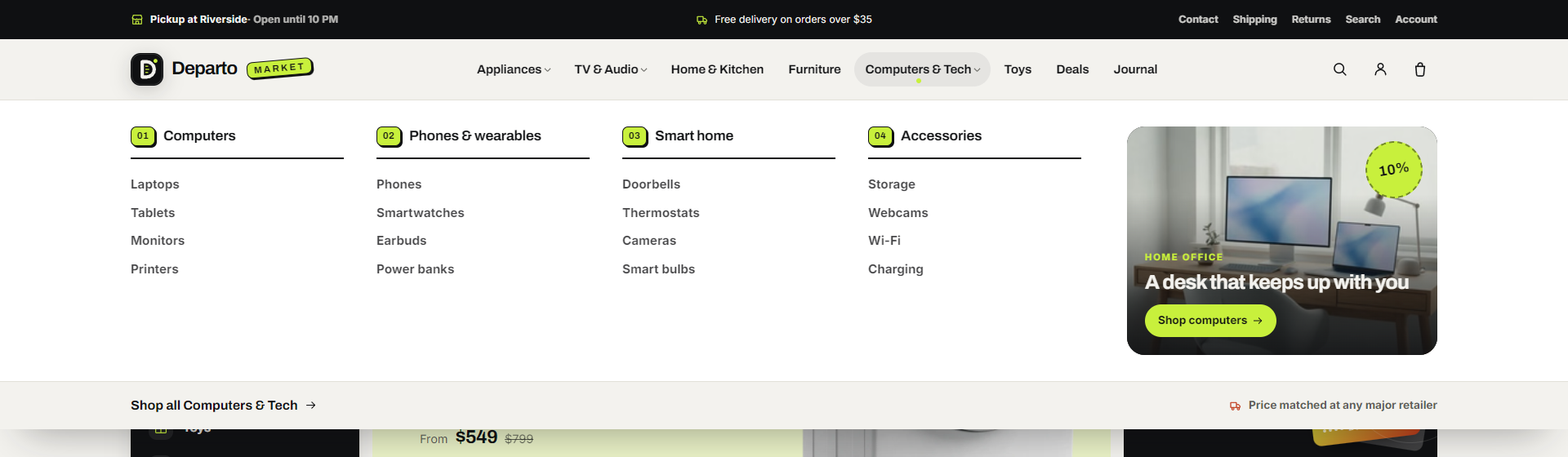
The mega menu needs no app. It is built from your normal Shopify menu plus one block in the header.
Step 1 - Build a three-level menu
In Online Store > Navigation > Main menu:
Appliances                <- top-level item (opens the mega menu)
  Kitchen                 <- column heading
    Refrigerators         <- column links
    Ranges
    Dishwashers
  Laundry
    Washers
    Dryers
  Floor care
    Robot vacuums
Drag items to the right to nest them. Up to five columns fit in one mega menu.
Step 2 - Add a Mega menu block
- Open the theme editor and select the Header section
- Click Add block > Mega menu
- In Menu item, type the title of the top-level item exactly as it appears in the menu (for example
Appliances)
The item now opens a full-width panel. Items without a matching block keep the simple dropdown.
Step 3 - Promo card and footer
| Setting | What it does |
|---|---|
| Image | Photo of the promo card on the right |
| Eyebrow / Heading | Text on the photo |
| Button label / Link | Button on the photo |
| Sticker | Short text in the round sticker, for example -30% |
| Footer note | Line on the right of the bottom bar, for example "Free delivery on orders over $499" |
Leave the image and heading empty to hide the promo card. The columns then use the full width.
Behavior
- Opens on mouse hover and on keyboard focus (Tab)
- Esc closes it and returns focus to the menu item
- On phones and tablets the same menu appears as expandable groups in the menu drawer