Product Gallery and 360 View
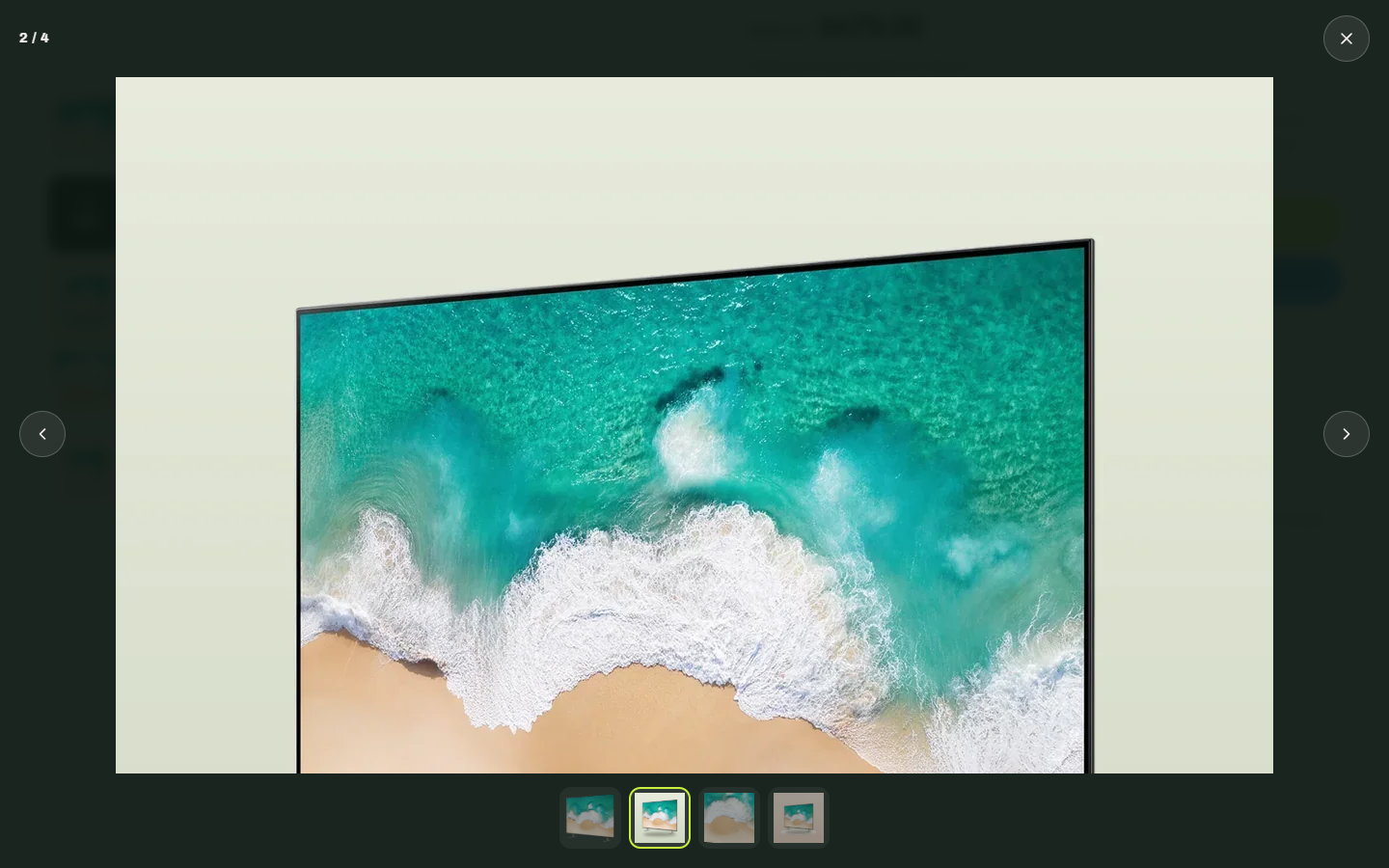
Zoom and lightbox
These work on every product image automatically:
- Hover zoom on desktop
- Full-screen lightbox: click an image or the magnifier button. Click inside the lightbox to zoom, move the mouse to pan, use the arrow keys or thumbnails to switch, press Esc to close.
For sharp zoom, upload images of at least 2000 x 2000 px.
Add a 360° view
The 360° view turns a series of photos taken around the product into a view the shopper can rotate by dragging.
1. Take the photos
- Put the product on a turntable or rotate it by hand in fixed steps
- Take 24 to 36 photos for a full circle (every 10 to 15 degrees). The minimum is 8.
- Keep the camera, light and framing the same for every shot
- Export them as square images, numbered in order
2. Upload them to the product
- Open Products > [your product]
- Upload the photos to Media in the right order
- For each 360 photo, click it, choose Add alt text and include
#360, for exampleAerova TV #360 frame 1
3. Done
When a product has 8 or more images with #360 in the alt text, Departo:
- hides those frames from the normal gallery
- adds a 360° thumbnail after the first image
- shows a drag-to-rotate viewer with an Auto-rotate button
Shoppers can drag with the mouse or a finger, or use the left and right arrow keys.
Loading speed
Only the first frame loads with the page. The rest load when the shopper opens the 360° view.
3D models and videos
3D models (GLB) uploaded to Shopify media show in the gallery with Shopify's 3D viewer, including AR on supported phones. Videos and YouTube or Vimeo links play inside the gallery.