Activation
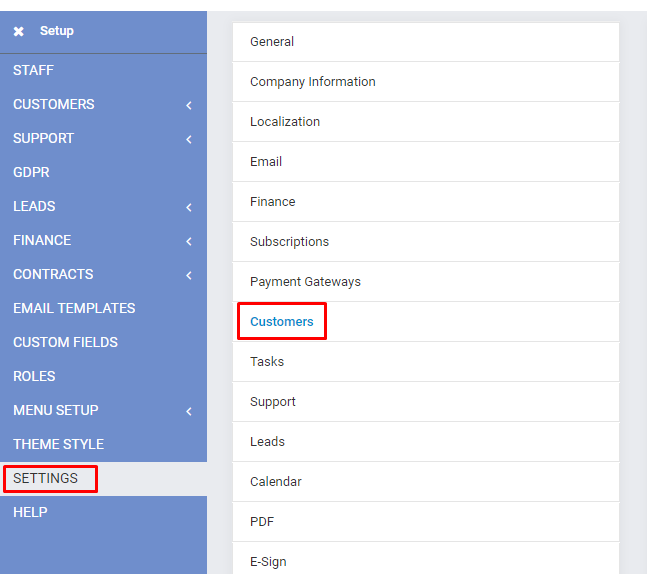
After installing and activating the Flat Theme module, you need to set it as the default customers theme from the Perfex CRM admin panel.
Enable Flat Theme
-
Go to Setup → Settings → Customers.
-
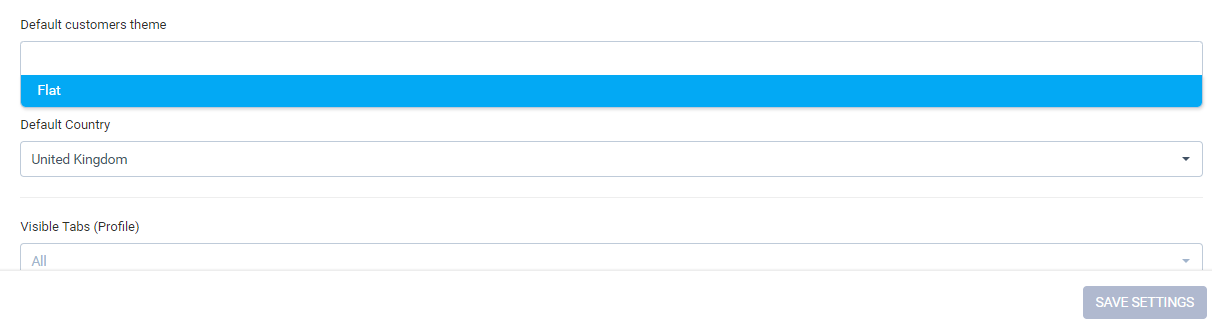
In the Default customers theme dropdown, select Flat and click Save.
-
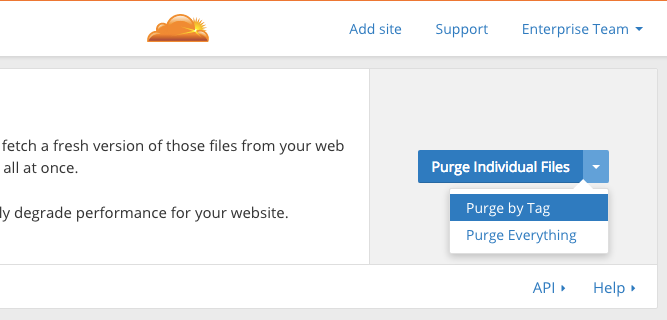
(Optional) If you use caching (CloudFlare, Redis, Varnish, etc.), clear the cache and hard refresh the page:
- Windows / Linux:
Ctrl + F5orCtrl + Shift + R - macOS:
Cmd + Shift + R
- Windows / Linux:
-
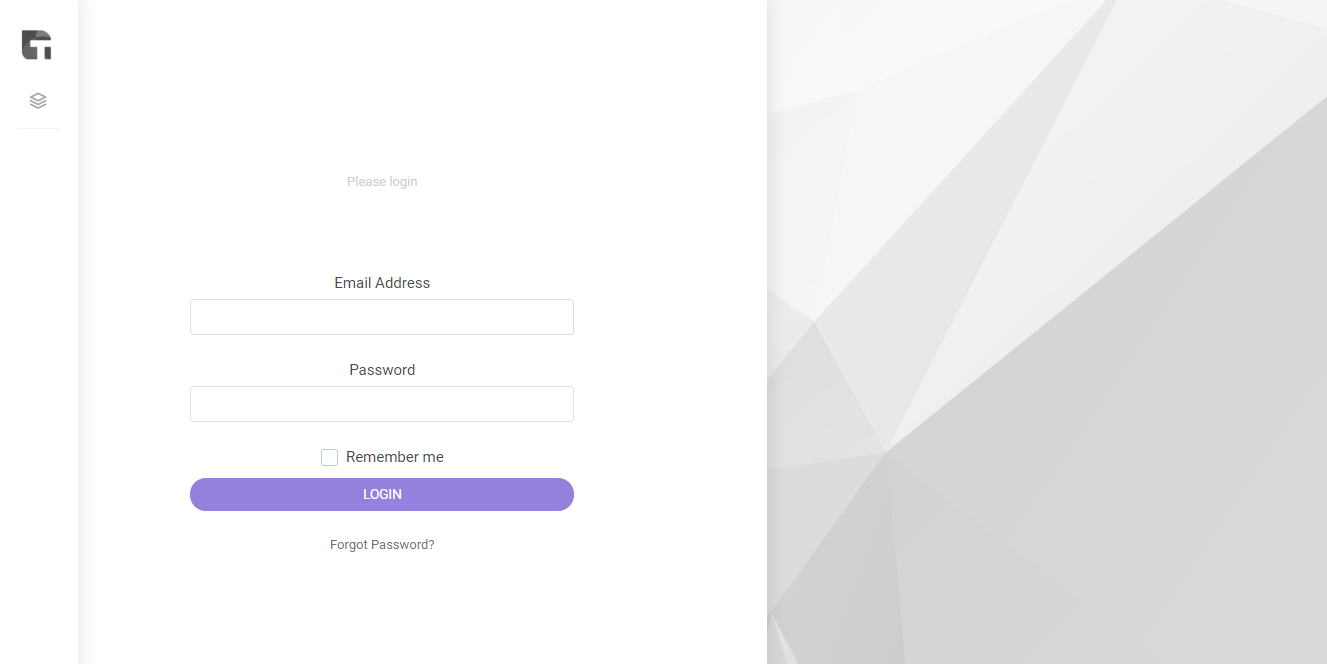
Visit your client portal --- the Flat Theme is now active.
If you do not see "Flat" in the dropdown, make sure the Flat Theme module has been uploaded and activated in Setup → Modules first. See the Getting Started guide for installation instructions.
Troubleshooting
| Issue | Solution |
|---|---|
| "Flat" not in dropdown | Ensure the module is uploaded and activated in Setup → Modules |
| Theme partially loads | Clear all caches (server and browser) and perform a hard refresh |
| Old theme still showing | Check if a CDN or reverse proxy is serving cached content; purge the CDN cache |
| Styling looks broken | Verify that the module was uploaded correctly and all migrations ran successfully |
If you are using a CDN such as CloudFlare, make sure to purge the cache after activation. CDNs can serve stale CSS and JavaScript files, which may cause the old theme to persist.
Support
If you encounter any issues during activation or the theme does not display correctly, visit the Themesic Support Portal to open a support ticket.